

One of the most important features of Azure DevOps – Pipelines is the ability to invoke the Pipelines automatically when the developers commit their code.
When you (as a DevOps engineer) author your YAML pipeline, you also commit your code multiple times, especially while you are in the development stage, which triggers the Pipelines when you don’t expect it as you are still in development mode. So, it makes sense to disable the automatic triggers temporarily until development of the pipeline is complete. In this article, we are going to learn how to disable the Continuous Integration trigger of the Azure DevOps YAML Pipeline.
Disable Continuous Integration on a YAML Build Pipeline
When you create your YAML Pipeline, it will be configured to run automatically on any commits to the default branch as shown below.
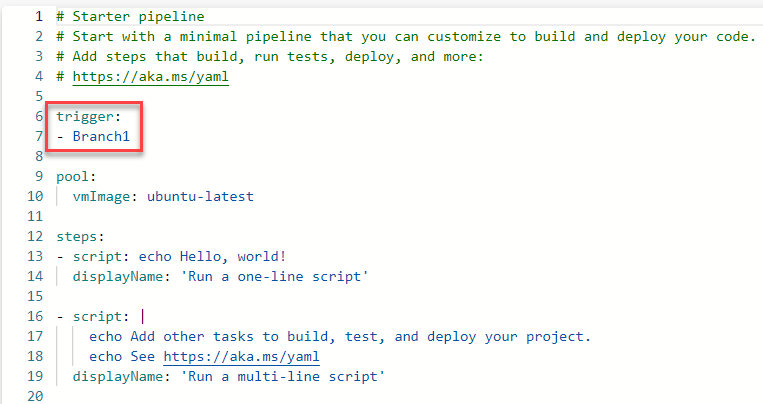
As shown above, the pipeline will automatically trigger when any changes are committed to the default branch. In this case, the default branch is ‘Branch1’.
In order to disable the behaviour, you don’t have to remove the trigger related code (Lines 6-7) in the above screenshot.
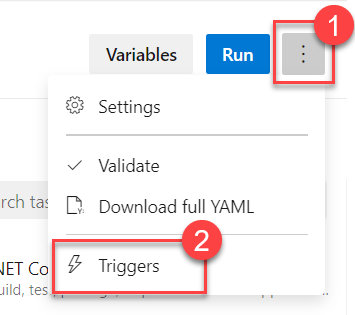
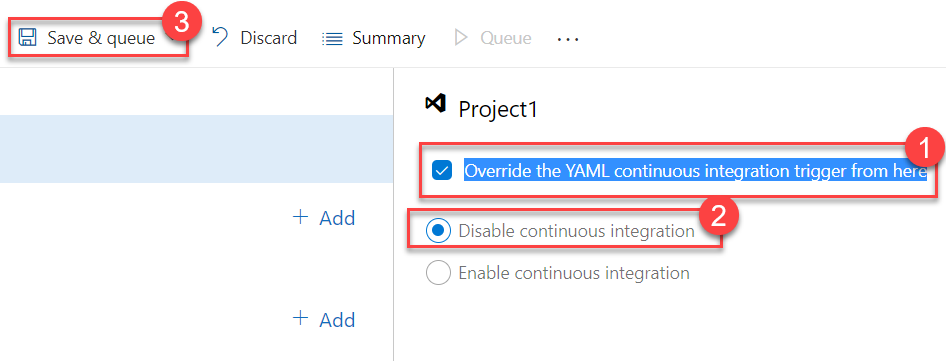
Instead, you need to navigate to Edit mode of the Pipeline, click on the ellipses, click on Triggers as shown and then select the Override the YAML continuous integration trigger from here checkbox and finally select Disable continuous integration as shown below.

If you would like some assistance with Azure | Azure DevOps Services | Blazor Development then please get in touch, we would be glad to help.
Choosing the right way to pause a pipeline
The override described above is the quickest route, but it is worth picking the right tool for the situation. Over many Azure DevOps engagements we have settled on a few simple judgement calls:
- A short-lived pause while you author the pipeline: use the UI override shown in this article. Nothing is committed, and it can be flipped back in seconds once the YAML is stable.
- A pipeline that should only ever run on demand: put
trigger: nonein the YAML itself. That makes the intent visible in code review and version history, rather than hiding it in portal settings. - Skipping a single run: include
[skip ci]in the commit message. This is ideal for documentation-only changes where a full build adds no value. - Too many builds rather than none: tighten the trigger with branch and path filters, or enable batching, so the pipeline still protects your default branch without building every intermediate commit.
The main pitfall with the UI override is that it is invisible in the repository. A colleague reading the YAML sees a trigger block that looks active, yet the pipeline silently does nothing. We treat the override as a temporary state: record it in the work item or team channel, and re-enable continuous integration as part of finishing the task, not as an afterthought. It is surprisingly common to find a release blocked weeks later because a build never ran and nobody remembered why.
The same discipline applies to release pipelines. If a stage must not deploy automatically, prefer explicit approvals and checks on the environment over quietly disabling triggers, so the safeguard is visible to the whole team. Getting these small conventions right early keeps .NET delivery pipelines predictable as the team and the number of pipelines grow.
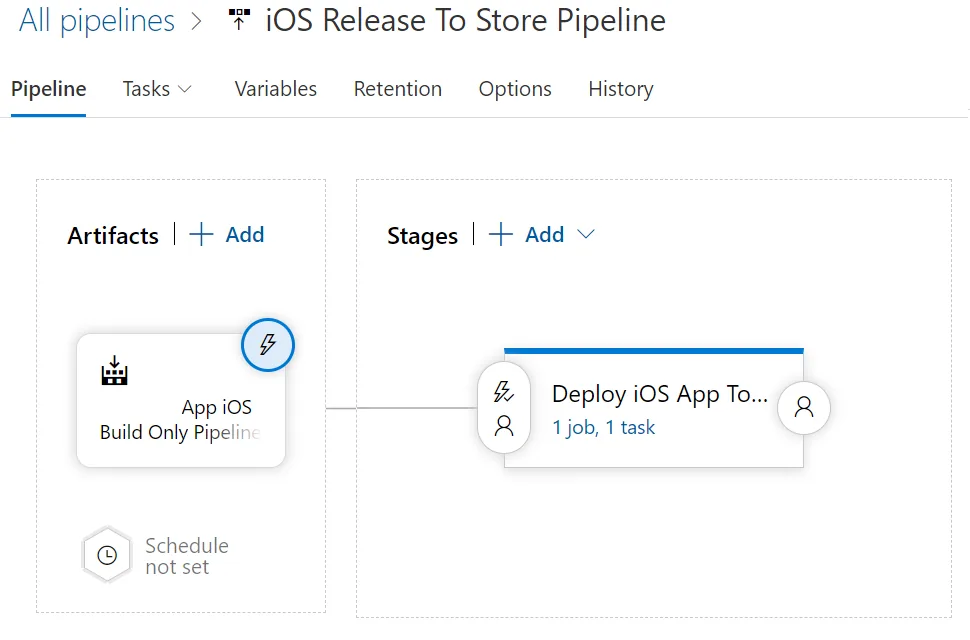
Disable Continuous Integration on a YAML Release Pipeline
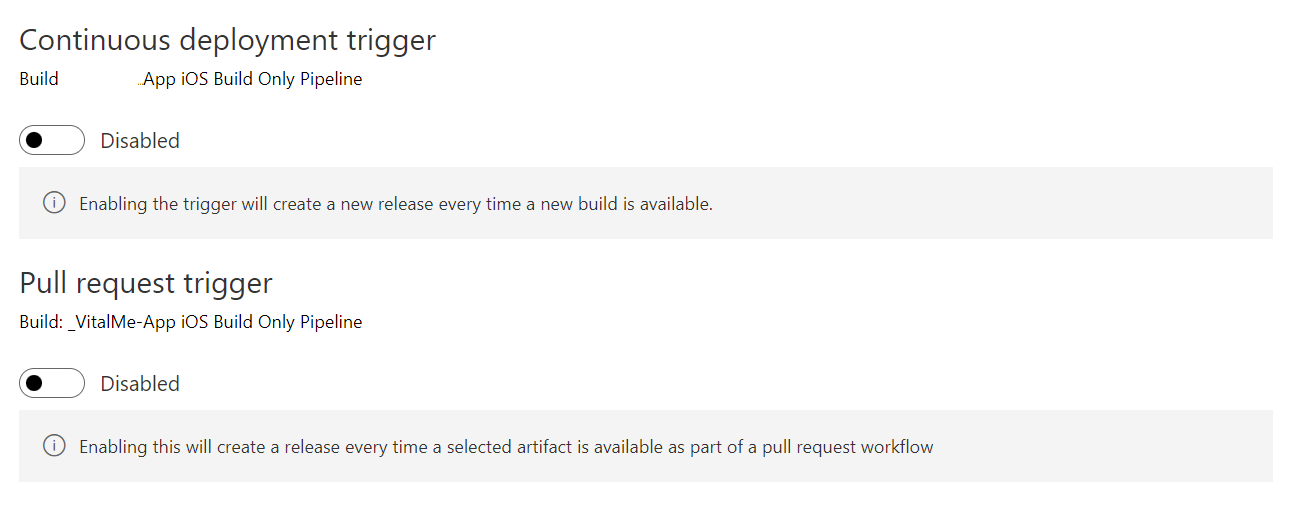
Conclusion
From now on, the pipelines will not trigger automatically for any commits made to any branch. You will have to run the pipeline manually. Once you are done with development and management of specific release testing for a given pipeline, you can come back and enable Continuous integration.
Still valid in 2026
Updated August 2026. A quick note for anyone finding this article today: the technique described here still works in Azure DevOps. Overriding the YAML trigger from the pipeline settings UI remains the cleanest way to pause continuous integration temporarily without committing changes to the pipeline definition itself, and we still use it during pipeline development and release testing. If you would like help designing or tidying up your build and release pipelines, see our Azure DevOps services.
At Assemblysoft we specialise in Custom Software Development tailored to your requirements. We can onboard and add value to your business rapidly. We are an experienced Full-stack development team able to provide specific technical expertise or manage your project requirements end to end. We specialise in the Microsoft cloud and .NET Solutions and Services. Our developers are Microsoft Certified. We have real-world experience developing .NET applications and Azure Services for a large array of business domains. If you would like some assistance with Azure | Azure DevOps Services | Blazor Development or in need of custom software development, from an experienced development team in the United Kingdom, then please get in touch, we would love to add immediate value to your business.

Assemblysoft - Your Safe Pair of Hands